Payroll
Run payroll, step by step
Start a run, add the month's one-off amounts, calculate, check the warnings, approve with a second person, and reopen or correct if needed.
For: Payroll and finance
1. Start a run
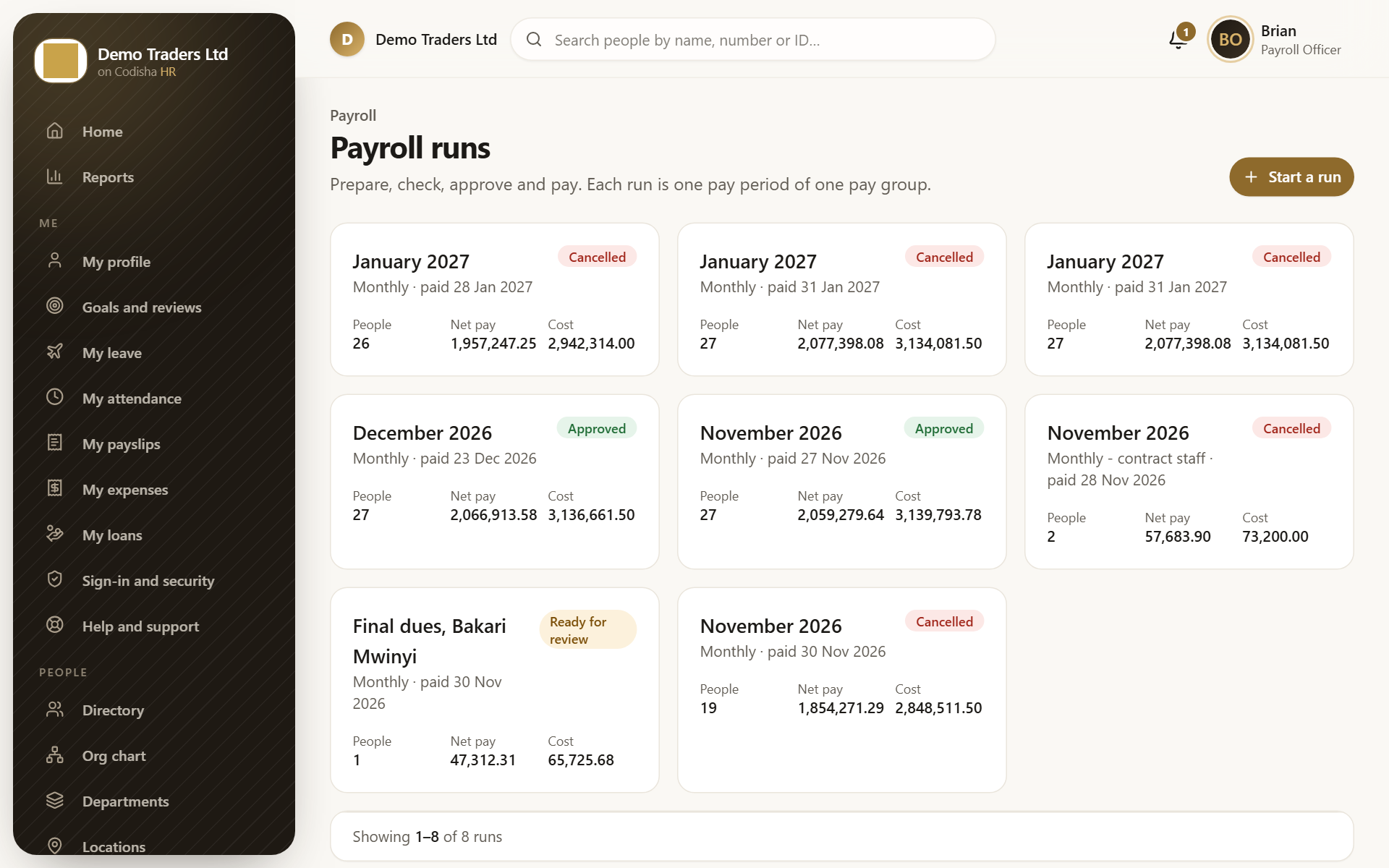
Open Payroll › Payroll runs and choose Start a run. Pick the pay group and kind (regular, bonus, final dues or correction). The period and pay date are filled in. There can only be one regular run per period.
2. One-off amounts
On the One-off amounts tab, add anything just for this run: a bonus, arrears, overtime hours, days worked for casuals. Approved overtime from attendance and approved expense claims are added for you.
3. Calculate and check
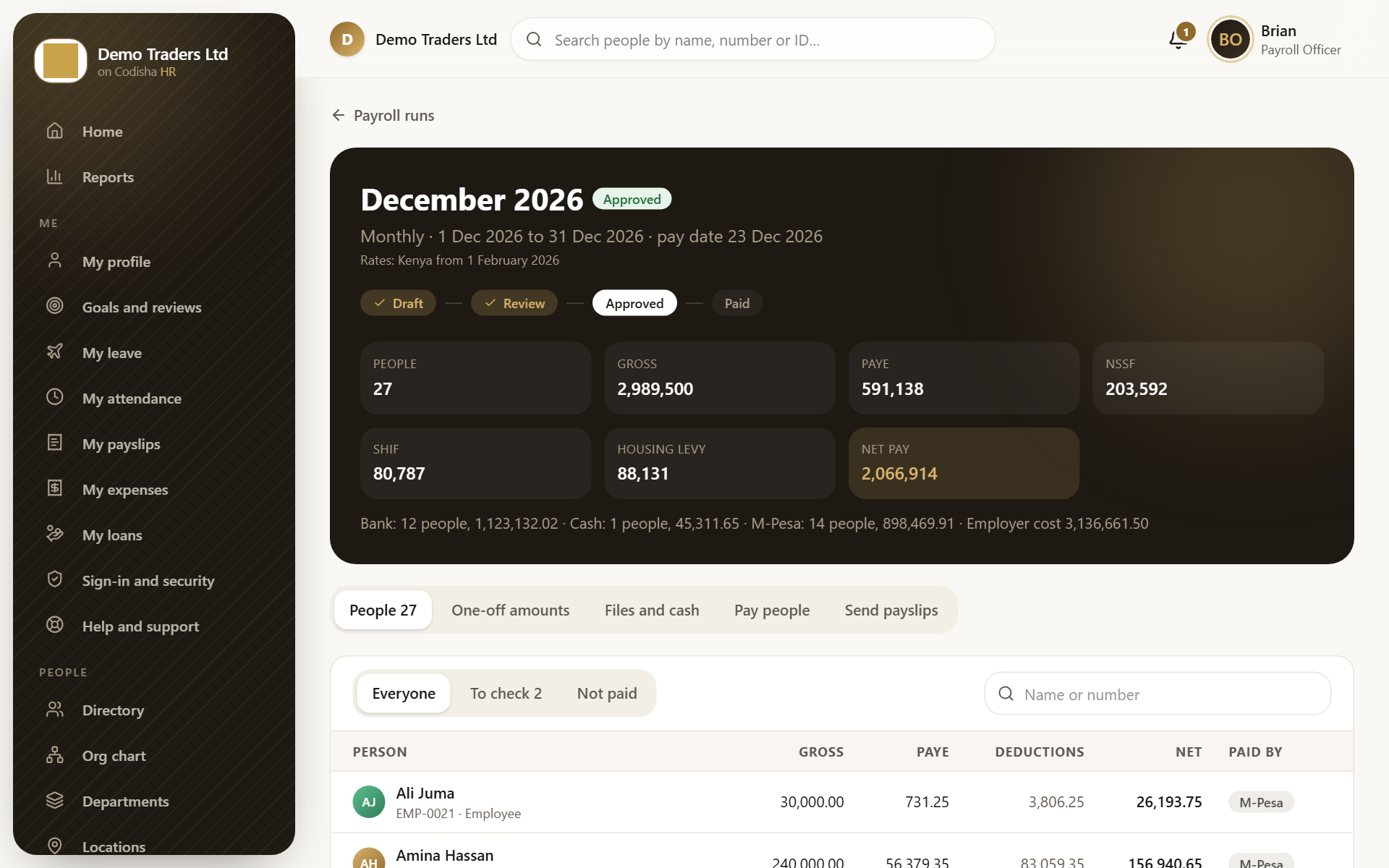
Choose Calculate. The People tab then lists everyone with gross, PAYE, deductions and net. Open anyone to see their full payslip and PDF. Filter to To check for people with warnings:
- Net pay moved more than your set percentage since last month.
- No KRA PIN (needed for the P10), no bank or M-Pesa details (they show as cash), or an M-Pesa number that isn't a Kenyan mobile.
- New joiners and leavers (pay is pro-rated), net pay below a third of basic, statutory deductions switched off.
4. Approve
Someone with approval rights chooses Approve and confirms it's them. If you prepared the run, a colleague approves it (unless your company switched off the second approver). Approved runs are locked; payslips appear for employees.
Mistakes
- Before anyone is paid, Reopen the run (with a reason), fix and calculate again.
- After paying, start a correction run for the people affected.
- Cancel run removes a run that shouldn't exist.
Next: pay your people, send payslips and file the returns.